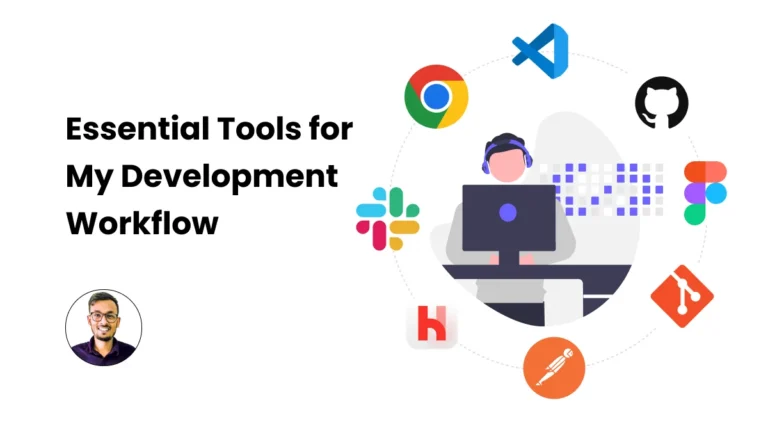
In my development journey, I rely on a variety of tools to enhance productivity, streamline tasks, and ensure high-quality results. Here’s a look at the tools I use regularly:
Visual Studio Code (VSCode)
VSCode is my go-to code editor due to its versatility, extensive extensions library, and robust debugging capabilities. It supports multiple languages and offers a highly customizable interface.
Chrome (and Brave)
For browser-based development and testing, Chrome is indispensable. Its developer tools are powerful for inspecting elements, debugging JavaScript, and analyzing performance. Brave is a great alternative for its privacy features and built-in ad-blocking.
Git and GitHub
Version control is crucial in development. Git allows me to track changes, collaborate with others, and manage code versions efficiently. GitHub serves as my primary platform for hosting repositories, reviewing code, and contributing to open-source projects.
Figma
Figma is an excellent design tool for creating UI/UX designs, wireframes, and prototypes. Its real-time collaboration features make it easy to work with design teams and stakeholders.
Postman
For API development and testing, Postman is essential. It simplifies creating, testing, and documenting APIs, ensuring they function correctly before integrating them into applications.
Laravel Herd
Laravel Herd provides a local development environment specifically for PHP applications. It helps in managing multiple PHP versions and streamlines the development process with built-in services.
Slack
Communication and collaboration are key in development. Slack helps in staying connected with team members, sharing updates, and integrating with other tools for seamless workflow management.
Conclusion
These tools collectively enhance my development process, from coding and version control to design and collaboration. Each tool plays a crucial role in ensuring efficiency and quality in my projects.
Feel free to share your favorite development tools or any tips you have for improving the workflow!
If you’re encountering issues with Laravel Herd where error logs are not showing up in WordPress, the solution involves adjusting the log configuration for PHP-FPM. Here’s how you can resolve this:
Step-by-Step Solution
Step 1: Locate the Log File
Laravel Herd writes logs to the following file:
/Users/{user_name}/Library/Application Support/Herd/Log/php-fpm.logStep 2: Adjust Configuration Files
Navigate to the configuration directory:
/Users/{user_name}/Library/Application Support/Herd/Config/fpmIn this directory, you’ll find configuration files for different PHP versions, named as [php_version]-fpm.config. example 8.2-fpm.config
Step 3: Modify Configuration Files
Open each configuration file and comment out the php_admin_value[error_log] line. Add a semicolon ; at the beginning of the line:
;php_admin_value[error_log] = /Users/{user_name}/Library/ApplicationStep 4: Restart Herd Services
After modifying the configuration files, go to Herd and stop all services. Then, start all services again.
Result
You should now see your logs in the wp-content/debug.log file of your WordPress installation.
Example
;php_admin_value[error_log] = /Users/{user_name}/Library/Application
By following these steps, you can ensure that your Laravel Herd logs appear correctly in the WordPress debug log file. This solution helps in troubleshooting and monitoring errors more effectively within your WordPress environment.